

FraudLabs Pro allows users to configure the email notification for the below fraud validation events:
- When a transaction was approved
- When a transaction was rejected
- When a transaction was pending for review
FraudLabs Pro will recommend you to enable the Rejected and Pending Review email notification alert, so that you will always be notified when a potential fraud order was uncovered. This will help to maximize your fraud protection.
In addition to the email notification, you may also install our mobile App that allowing you to manage your order any time at anywhere via your mobile.
How to Enable The Email Notification #
- Login to the FraudLabs Pro Merchant Control Panel.
- Click on the Settings > General menu, scroll to the Notifications section.
- Under Email Notification, enable the Email Notification and then enter your email address that you wish to receive email notification from FraudLabs Pro.
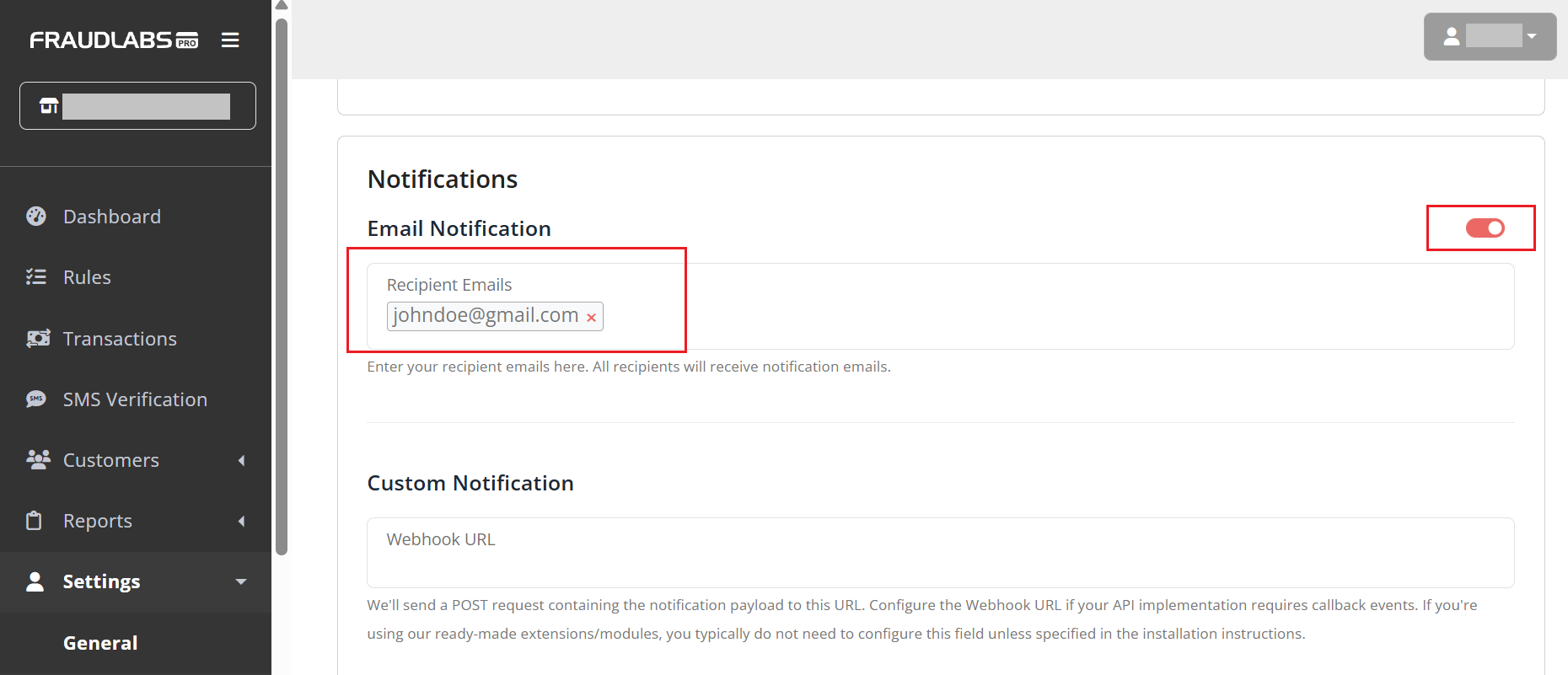
- Scroll to Send Notification When section, you can select when to send an email notifications when your order transaction is approved, under review or rejected.

- Click Save Changes and you are done.
Ready to start with FraudLabs Pro? #
Get Micro plan for free, you can quickly explore and integrate with our fraud prevention solution in minutes.