

- Login to the FraudLabs Pro Merchant Control Panel.
- Click on the Rules menu.
- Click on the Add Rule button.
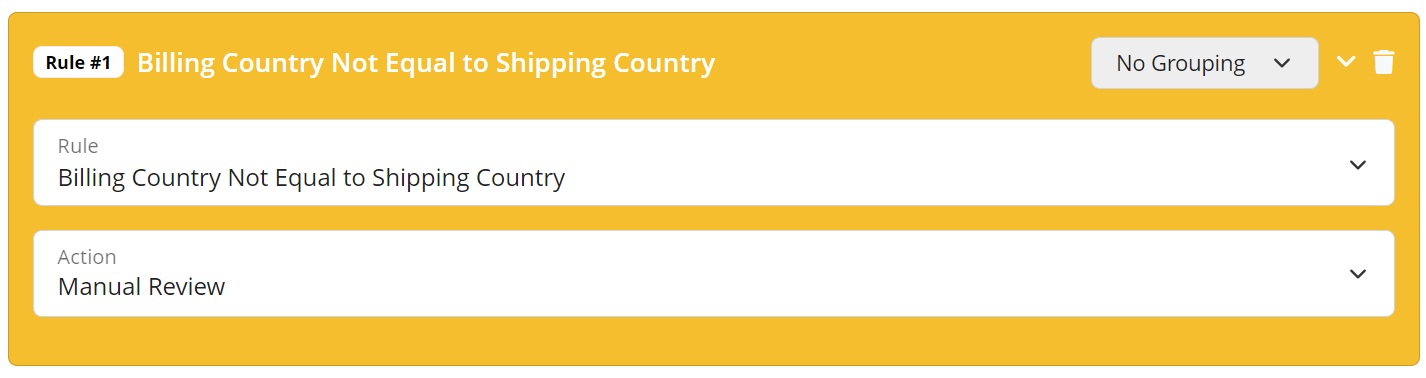
- Suppose you want to manual review the orders that the billing country was not the same as shipping country. You can enter the values as below:
- Rule: Billing Country Not Equal To Shipping Country
- Action: Manual Review
- Click on the Save button.
- You can now create an order to test the rule.
- Go to Transactions > Create.
- Enter the order details, the IP address, shipping information and billing information. Please make sure the shipping country is different from the billing country.
- Click on the Create button.
- Go to Transactions > Transactions.
- Search for the order that you have just created.
- You should notice the REVIEW status.
- Click on the details icon to view the transaction details.
- Under the Manual Review Triggered By Following Rule section, you should see the following description: Billing Country NOT EQUALS TO Shipping Country. Note: This section will display the rule that was triggered during the fraud validation process.
- You can review the transaction details and decide to approve or reject the order.
Ready to start with FraudLabs Pro? #
Get Micro plan for free, you can quickly explore and integrate with our fraud prevention solution in minutes.