


Introduction #
Fraud prevention is an important part of every online business. Whether you run an e-commerce store, SaaS platform, marketplace, or membership website, you need a fast and reliable way to identify suspicious orders and risky users before they cause losses.
The FraudLabs Pro MCP AI Agent makes this process easier by allowing users to perform fraud screening directly through an AI assistant. By using the Model Context Protocol, or MCP, the AI agent can connect with FraudLabs Pro and help merchants screen transactions, retrieve fraud results, and update fraud review decisions using simple natural language commands.
Instead of switching between dashboards, API tools, or internal systems, users can simply ask the AI agent to check an order, review a user transaction, or approve or reject a pending case.
This guide walks you through what the MCP server does, how to set it up, and how to start using it.
What Is the FraudLabs Pro MCP Server? #
The Model Context Protocol (MCP) is a lightweight communication layer that connects AI models to external data sources and tools. Instead of building custom integrations, developers define an MCP server that an AI model can discover and call at runtime.
The FraudLabs Pro MCP Server acts as a bridge between your AI assistant and the FraudLabs Pro fraud detection engine. Once connected, your AI assistant can:
- Screen orders and user transactions for fraud
- Retrieve the screening result for a specific transaction
- Update the status of a transaction to Approved, Rejected, or Rejected & Blacklisted
The server is open source and available on GitHub and listed on Glama.ai.
Use Cases #
The FraudLabs Pro MCP Server supports a wide range of fraud prevention scenarios. Whether you are running an online store, managing user accounts, or building an AI-powered workflow, here is how it can help.
Order Screening #
Validate orders in real time by passing order details like billing, shipping, payment, IP data and so on to FraudLabs Pro for instant risk assessment. Every order will be screened automatically, so you can catch fraudulent transactions before they are fulfilled.
For each order, FraudLabs Pro checks a wide range of signals — including the customer’s IP reputation, proxy usage, credit card details, email validity, billing and shipping addresses and so on. Based on the results, the order is assigned a fraud score and a comprehensive fraud report. This gives you a clear picture of every transaction without having to investigate each one manually.
User Transaction Screening #
Screen account creation and login events to catch credential stuffing, fake signups, and suspicious behaviour early. Protect your store from fraudsters who create fake accounts before they ever reach checkout.
By screening user transactions at the point of registration or login, you can identify red flags such as disposable email addresses, high-risk IP addresses, and suspicious phone numbers before the user completes any transaction. This adds an extra layer of protection for your store, stopping fraud at its source rather than dealing with the consequences later.
Transaction Review Workflows #
Retrieve past screening results and update transaction actions like approve, reject, or reject and blacklist — directly from your AI assistant. No need to log into a separate dashboard to manage flagged orders.
When an order is placed under manual review, your AI assistant can pull up the full fraud report for that transaction in seconds including the fraud score, rules triggered, geolocation data, order details and more.
You can then make an informed decision and update the status on the spot. This removes the back-and-forth between your AI assistant and your FraudLabs Pro dashboard, keeping your review process fast and efficient.
Automated agent pipelines #
Embed fraud checks into AI agents that handle order fulfilment, customer support, or financial operations. FraudLabs Pro becomes a native step in your workflow, screening transactions automatically without any manual intervention.
Instead of relying on a separate tool or a custom-built integration, your AI agent can call FraudLabs Pro directly as part of its decision-making process. For example, an order fulfilment agent can screen each incoming order before triggering shipment, or a customer support agent can retrieve the fraud report for a disputed transaction before processing a refund.
Requirements #
Before setting up the FraudLabs Pro MCP Server, make sure you have the following:
Python #
Python 3.10 or above is required to run the MCP server. Some dependencies are also required to install beforehand, you can install it with this command:
pip install mcp httpx uvFraudLabs Pro API key #
The FraudLabs Pro API key allows the MCP server to connect with FraudLabs Pro and perform fraud screening requests. Please sign up for an API key if you do not have one.
Claude Desktop #
Claude Desktop is needed in this tutorial. If you haven’t installed the Claude Desktop application before, kindly download from Claude website and install it.
How to Set Up the FraudLabs Pro MCP Server #
Step 1: Download the MCP server #
Download the latest release of the server from the FraudLabs Pro GitHub repository.
Extract the files to a folder on your machine. Take note of the path to the folder — you will need it in the next step.
Step 2: Configure Claude Desktop #
To use the MCP server with Claude Desktop, you need to add an entry to the Claude Desktop configuration file.
Locate the file based on your operating system:
- macOS:
~/Library/Application Support/Claude/claude_desktop_config.json - Windows:
%APPDATA%\Claude\claude_desktop_config.json
Open the file and add the following configuration:
{
  "mcpServers": {
    "fraudlabspro": {
      "command": "uv",
      "args": [
        "--directory",
        "path//to//mcp-fraudlabspro//src",
        "run",
        "server.py"
      ],
      "env": {
        "FRAUDLABSPRO_API_KEY": "YOUR_API_KEY_HERE"
      }
    }
  }
}Replace path//to//mcp-fraudlabspro//src with the actual path of the FraudLabs Pro MCP server repository in your local, and then replace YOUR_API_KEY_HERE with your FraudLabs Pro API key.
Step 3: Restart Claude Desktop #
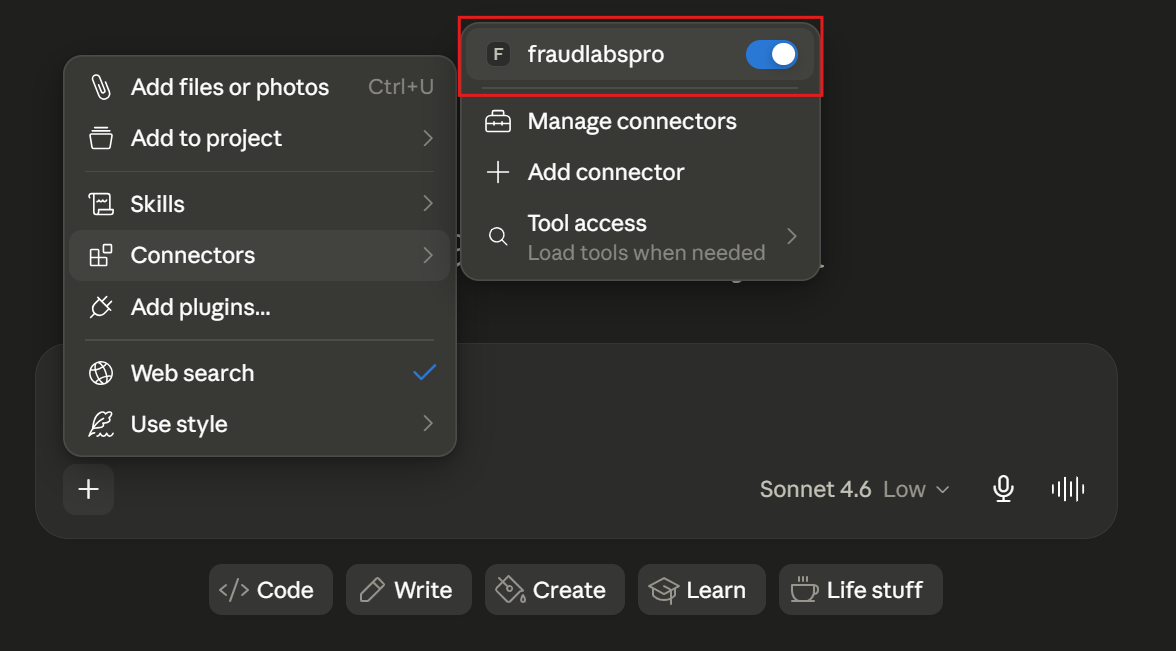
Save the configuration file and restart Claude Desktop. The FraudLabs Pro MCP Server will be loaded automatically in the Search & Tools menu.
How to Use the FraudLabs Pro MCP Server #
Order Transaction #
Screening an order #
To screen an order, pass your order details as a JSON object in a prompt like one of these:
- Help me to validate this:
[order_details] - Help me to validate the following:
[order_details] - Help me to validate an order with the details below:
[order_details]
You can pass your order details as a JSON object, for example:
{
	"ip": "198.221.136.159",
	"last_name": "Doe",
	"first_name": "John",
	"bill_addr": "1766 PowderHouse Road",
	"bill_city": "Cleveland",
	"bill_state": "OH",
	"bill_zip_code": "44115",
	"bill_country": "US",
	"ship_last_name": "Doe",
	"ship_first_name": "John",
	"ship_addr": "4987 Bingamon Road",
	"ship_city": "Cleveland",
	"ship_state": "OH",
	"ship_zip_code": "44115",
	"ship_country": "US",
	"user_phone": "440-5551961",
	"email": "john123@gmail.com",
	"bin_no": "558265",
	"user_order_id": "1001",
	"amount": "399.00",
	"quantity": "1",
	"currency": "USD",
	"department": "Online Store",
	"payment_gateway": "stripe",
	"payment_mode": "creditcard",
}For the full list of supported parameters, refer to the FraudLabs Pro Screen Order API documentation.
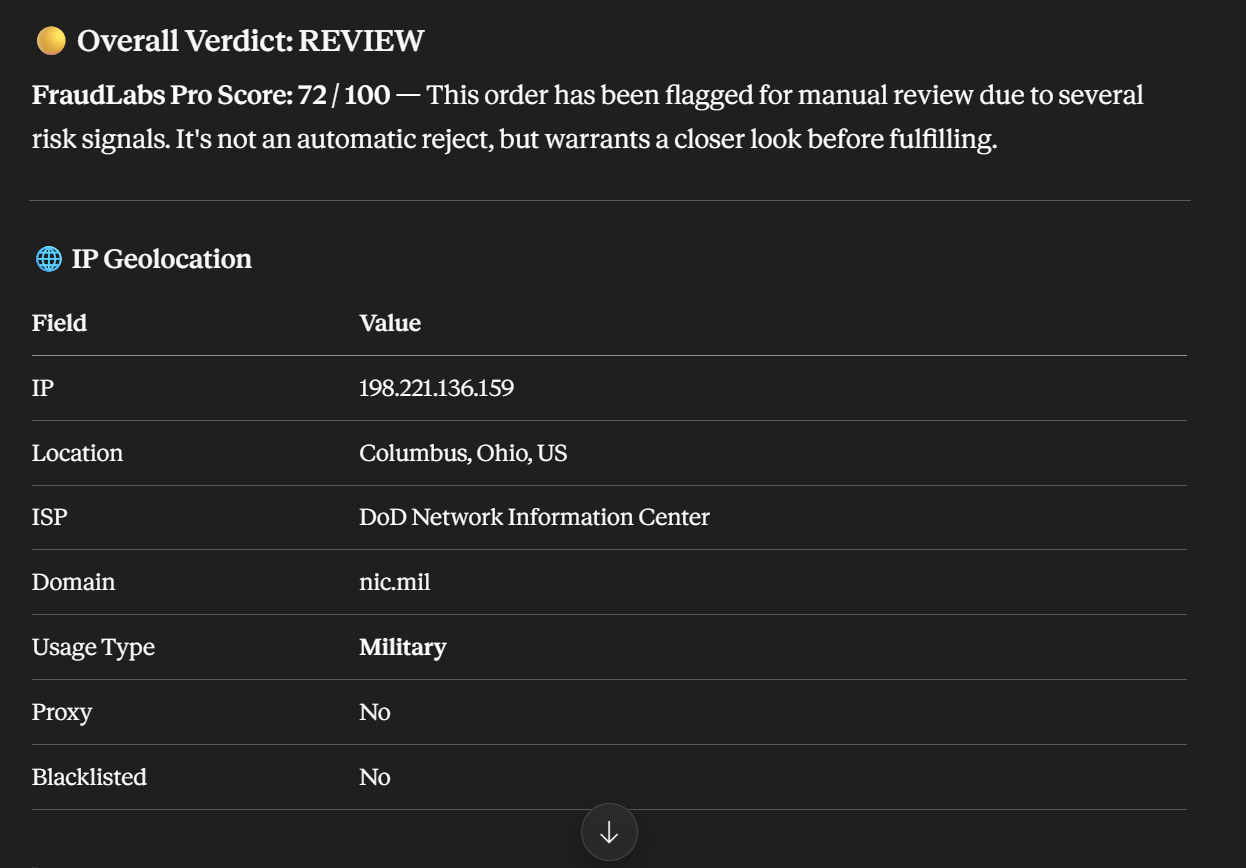
This is an example result for the order details above:
Retrieving an order result #
To retrieve the screening result of a past transaction, use the transaction ID from your FraudLabs Pro Transactions page:
- Help me retrieve the details for the transaction
[transaction ID] - I want to check the order transaction
[transaction ID] - Get the screening result for
[transaction ID]
Updating an order status #
To update the status of an order, use one of the following actions:
APPROVE :Approve a transaction.REJECT: Reject a transaction.REJECT_BLACKLIST: Reject and blacklist a transaction.
Use this prompt format:
I want to {APPROVE/REJECT/REJECT_BLACKLIST} the transaction [transaction ID].
User Transaction #
Screening a user transaction #
This MCP Server supports screening a user transaction with the supplied details, retrieving the screening result of a user transaction, and updating the status for a user transaction from pending-manual-review to APPROVE, REJECT or REJECT_BLACKLIST.
Note: User transaction screening is available on the Medium plan and above. You can subscribe for a free trial on Medium plan to unlock the feature.
To screen a user transaction, you can try the example prompts below:
- Help me to validate this:
[user_details] - Help me to validate the following:
[user_details] - Help me to validate an order with the details at below:
[user_details]
You can pass your user details as a JSON object, for example:
{
	"email": "hh5566@gmail.com",
	"ip": "8.8.8.8",
	"last_name": "Henderson",
	"first_name": "Hector",
	"phone": "561-628-8674"
}For a full list of input parameters for the JSON object above, see the documentation.
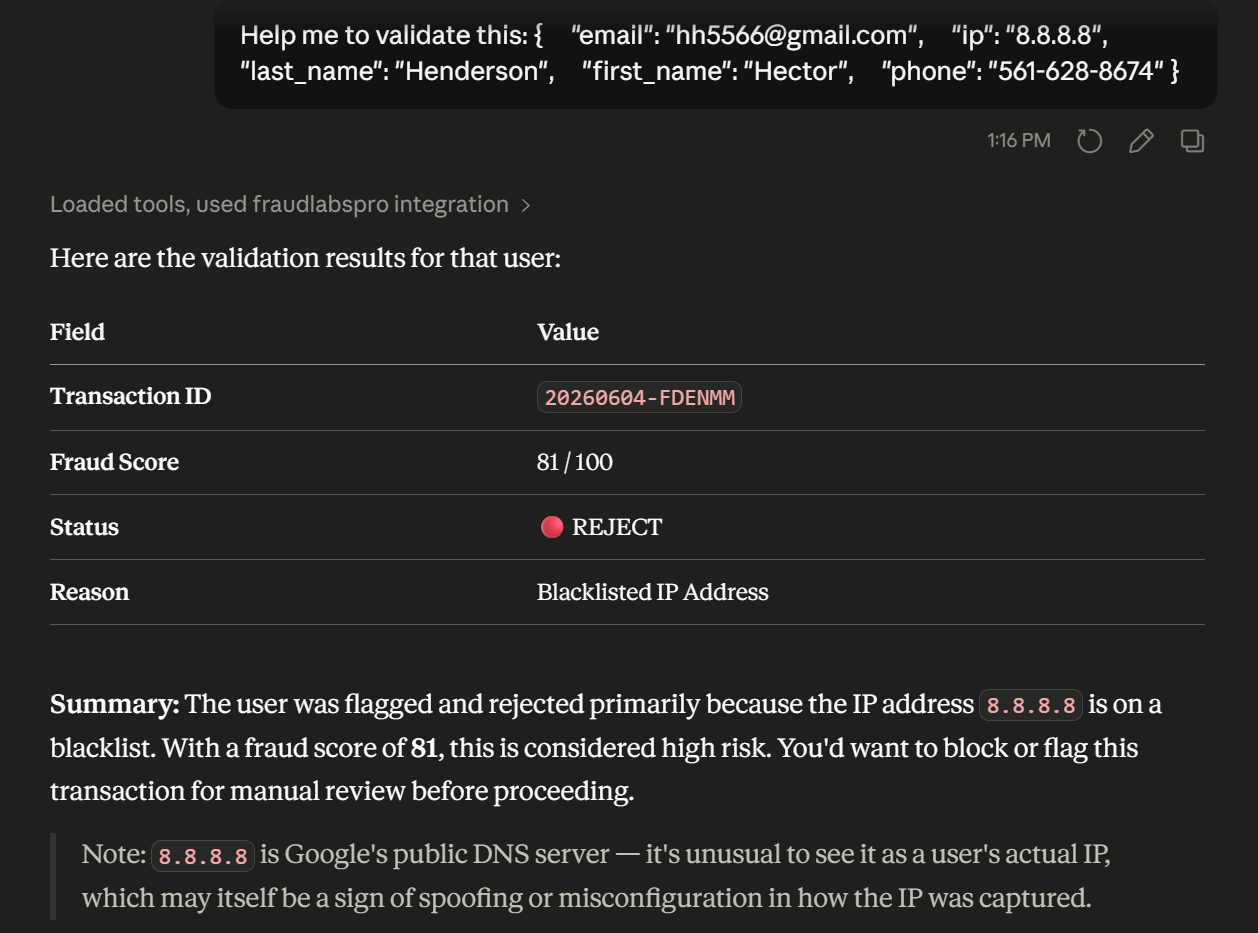
This is an example result for the user details above:
Retrieving a user transaction result #
To retrieve the screening result for a user transaction, you can try the example prompts below:
- Help me retrieve the details for the user transaction
[transaction ID] - I want to check the user transaction
[transaction ID] - Get the screening result for the user transaction
[transaction ID]
You can find the [transaction ID] by navigating to the Transactions > User Transactions page after logging in.
Update a User Transaction Status #
To update the status of a user transaction, use one of the following actions:
APPROVE: Approve a transaction.REJECT: Reject a transaction.REJECT_BLACKLIST: Reject and blacklist a transaction.
Use this prompt format:
- I want to
{APPROVE/REJECT/REJECT_BLACKLIST}the transaction[transaction ID].
Benefits of Using the FraudLabs Pro MCP Server #
Using the FraudLabs Pro MCP Server brings several advantages to your fraud prevention workflow. Here is what you can expect once it is set up and running.
Easy Integration #
Setting up a fraud detection integration from scratch typically involves writing custom API clients, handling authentication, and managing error responses. With the MCP server, all of that is handled for you. The MCP layer manages the communication between your AI assistant and the FraudLabs Pro API automatically, so you can get started without writing a single line of custom code.
Natural Language Interface #
You do not need to know the API syntax or remember specific parameter names to use FraudLabs Pro through the MCP server. Simply describe what you want to do like screen an order, retrieve a result, or update a status — and your AI assistant handles the rest. This makes fraud screening accessible to anyone on your team, not just developers.
Full Transaction Lifecycle Support #
The FraudLabs Pro MCP server covers every stage of the fraud review process. You can screen a new order as it comes in, retrieve the full fraud report for a past transaction, and update the status to Approved, Rejected, or Rejected & Blacklisted — all from within your AI assistant. There is no need to switch between tools or log into a separate dashboard to complete a review.
Proven Fraud Detection Engine #
Behind every screening request is the FraudLabs Pro detection engine, which checks a comprehensive set of risk signals including IP reputation, anonymous proxy detection, credit card BIN validation, email deliverability, geolocation data, and more. This is the same engine trusted by merchants across multiple e-commerce platforms worldwide.
Free to Get Started #
You do not need a paid plan to start using the FraudLabs Pro MCP Server. Order screening is available on the free Micro plan, which gives you up to 500 queries per month at no cost. When you are ready to unlock user transaction screening and higher query limits, you can upgrade to the Medium plan or above — a free trial is available if you would like to try it first.
Final Thoughts #
The FraudLabs Pro MCP AI Agent brings fraud prevention into the AI assistant experience. It allows merchants and fraud teams to validate orders, check user transactions, retrieve fraud screening results, and update review decisions using natural language.
By connecting FraudLabs Pro with MCP-compatible AI assistants, businesses can reduce manual work, speed up fraud review, and make fraud screening more accessible to both technical and non-technical users.
For businesses looking to modernize their fraud prevention workflow, the FraudLabs Pro MCP AI Agent provides a practical and efficient way to combine AI assistance with reliable fraud detection.
Secure Transactions, Seamless Business #
Say goodbye to fraud worries! Secure your online store with FraudLabs Pro now.