

Real-time notifications are a critical component of proactive fraud prevention, enabling merchants to identify and halt suspicious activities the moment they occur. This immediate alerting system allows for a rapid response that safeguards revenue by minimizing chargebacks and preserving customer trust through the prevention of unauthorized account access. By automating the notification process, businesses can maintain a secure transaction environment while significantly reducing operational costs through the expedited detection of fraudulent patterns. FraudLabs Pro has recently updated its Make app to send instant alerts right after an order has been validated. This improvement allows merchants to immediately address fraudulent transactions and customer inquiries.
What is Make #
Make is an automation platform that allows users to design, build, and automate workflows by connecting various apps and services without needing extensive coding knowledge. It works by using a visual builder to create scenarios where a specific trigger in one app automatically executes a series of actions across other integrated tools. By integrating FraudLabs Pro with Make, merchants can design a personalized automation built for your specific business logic. By offloading repetitive tasks like notifications and data entry to Make, merchants can stop managing workflows and start scaling their business.
In this tutorial, we will demonstrate how to configure the integration between Make and FraudLabs Pro. It is important to note that while this tutorial utilizes the Gmail application as the primary Action App within the scenario, the platform offers the flexibility to select any alternative Pipedream-integrated application to serve as the designated Action App for your specific scenario.
Create a scenario in Make #
- After logging into the Make dashboard, click on the “+ Create scenario” button on the top to create a new scenario.
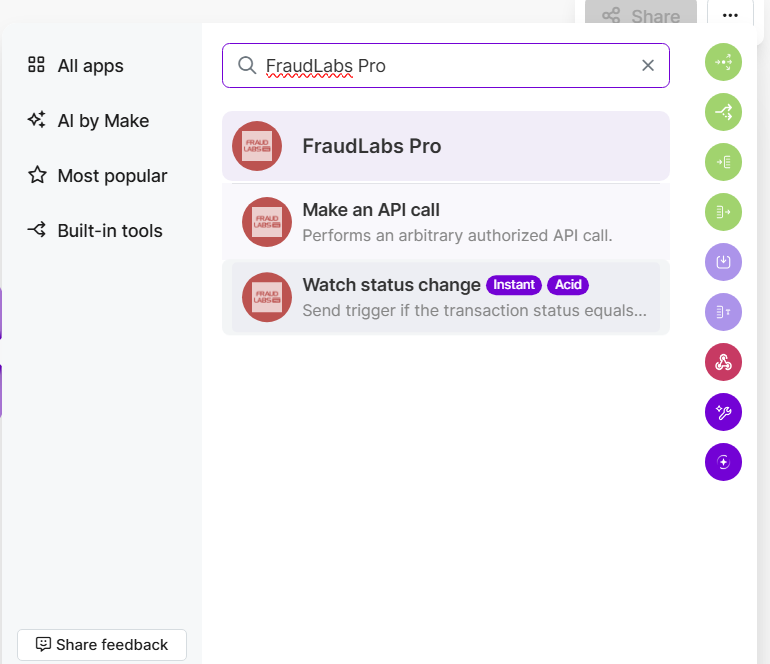
- Search for the “FraudLabs Pro” in the search bar, and click on the “Watch status change” in the search result.
- Click on the “Create a webhook” button, name the webhook and click on the “Create a connection” button.
- Enter FraudLabs Pro API Key and click on Save button.
- Click on the + sign, search for the “Gmail”, and select the “Send an email” from the search result.
- Click on the “Create a connection” button and click on the “Sign in with Google” account to connect your Gmail account to Make.
- Customize the email template. Remember to click on the save button at the bottom to save the changes.
- Click on the toggle button at the bottom to deploy the scenario.
- Done.
Enable Make Notification in FraudLabs Pro #
- Login to FraudLabs Pro Merchant Area.
- Click on the Settings in the left menu bar.
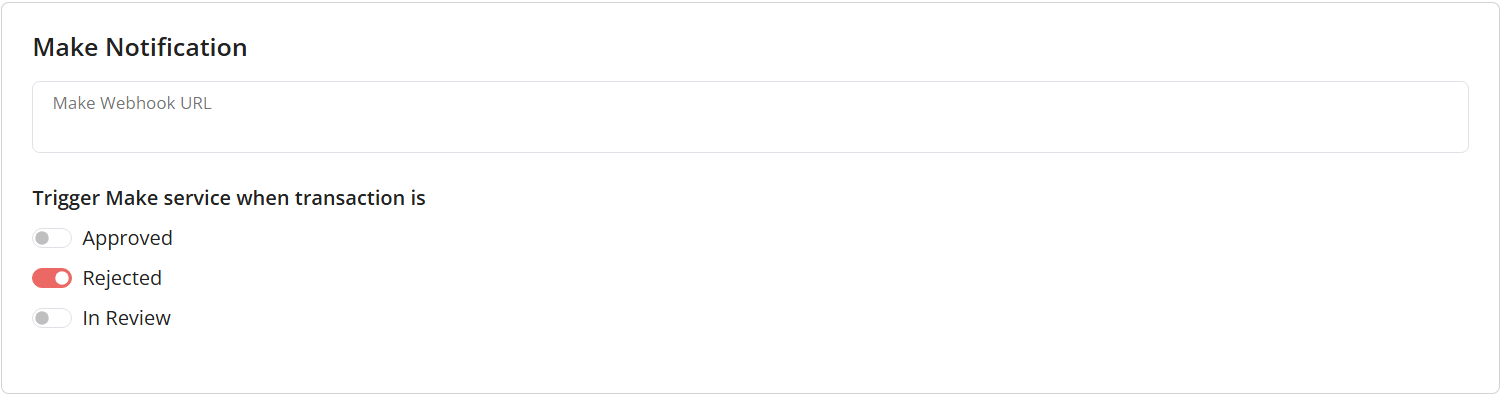
- Under the Make Notification section, select the status to enable the notification.
- Click on Save Changes.
- Done.
Benefits of Using Make Notifications with FraudLabs Pro #
Integrating Make notifications into FraudLabs Pro offers several advantages:
- Real-time Fraud Response: The immediate alerting system allows for a rapid response to safeguard revenue and minimize chargebacks.
- Personalized Automation: Merchants can design a personalized automation built for their specific business logic by connecting FraudLabs Pro with Make.
- Operational Efficiency: Automating the notification process significantly reduces operational costs through the expedited detection of fraudulent patterns.
- Business Scaling: Offloading repetitive tasks like notifications and data entry allows merchants to stop managing workflows and start scaling their business.
Conclusion #
The integration of Make notifications with FraudLabs Pro transforms fraud prevention by enabling real-time responses to suspicious activity. This customizable solution allows merchants to design personalized automation workflows, leading to significant gains in operational efficiency and cost reduction. By offloading repetitive tasks, businesses can maintain a secure transaction environment and shift focus from managing workflows to achieving rapid business scaling.